Olive Garden
Nutrition Calculator
Calculate calories, sodium, fat, carbs, protein, and
complete nutrition totals for your entire Olive Garden meal.
The Olive Garden nutrition calculator helps you check the calories, sodium and complete nutrition information for individual dishes or an entire meal. Search for a menu item, add it to your meal and watch the totals update automatically. You can include multiple entrées, soups, breadsticks, drinks, sauces, desserts and other selections in one calculation.
The calculator is useful when a single calorie number does not tell the full story. A meal may include an entrée, salad, breadsticks, dipping sauce and a beverage, so checking each item separately can become confusing. This tool brings everything together and shows how your complete order compares with your personal calorie and sodium targets.
Use Nutrition Calculator
Use + to add an item immediately. Select an item name to open its complete nutrition table.
Compare Two Menu Items
Olive Garden Nutrition Calculator at a Glance
Tool Feature | What It Helps You Do |
|---|---|
Menu search | Find a dish by entering part of its name |
Category filter | Narrow results by menu category |
Multiple-item meal builder | Add several dishes, sides, drinks, or sauces |
Quantity controls | Count extra breadsticks, soups, or duplicate items |
Calorie tracker | See calories consumed and calories remaining |
Sodium tracker | Compare meal sodium with your daily target |
Full nutrition table | Check fat, carbs, protein, cholesterol, and more |
Item comparison | Compare two menu choices side by side |
Print or save | Keep a copy of your selected meal |
How to Use the Olive Garden Nutrition Calculator
Start by entering the name of an Olive Garden menu item in the search box. The calculator will immediately display matching suggestions with calories and sodium shown beside each result. You can also choose a category or apply calorie and sodium limits to narrow the list.
Click the name of a product when you want to open its complete nutrition table. Click the green plus button when you want to include that item in your meal total. The button changes after selection, making it easy to see which products have already been added.
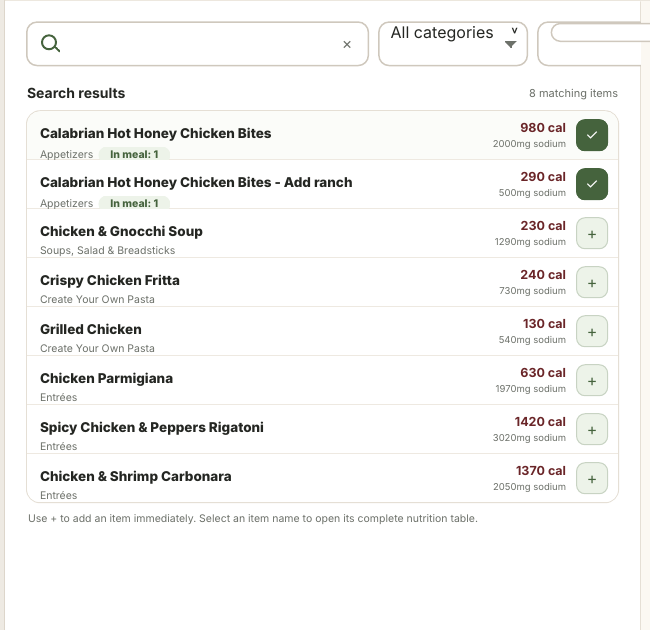
Screenshot: Search results show calories, sodium, categories and a clear plus button for adding items.
Quick Steps

Search for a dish, drink,
sauce or side.

Review the calories
and sodium beside the item.

Click the item name to see complete nutrition details.

Click the plus button to add it to your meal.

Continue searching and add any additional items.

Adjust quantities when ordering more than one serving.

Review your combined calories, sodium and nutrient totals.
Add Multiple Olive Garden Items to One Meal
A restaurant order usually contains more than one item. Instead of calculating each selection separately, the meal builder allows you to combine everything you plan to eat or drink. This provides a more useful estimate than looking only at the entrée.
For example, you can add an entrée, one serving of soup, two breadsticks, dipping sauce and a beverage. Each item appears in the selected meal panel, where its quantity can be increased, reduced or removed. The calculator updates the totals immediately after every change.
Quantity controls are especially helpful for items that may be eaten more than once. If you plan to have two breadsticks or a second serving of soup, increase the quantity rather than searching for the product again. Use the clear-all option when you want to start a completely new meal.
Track Your Daily Calories and Sodium
The calorie tracker compares your selected meal with a daily target. It shows the number of calories in the meal, the percentage of the target used and the amount remaining. You can edit the target when your daily calorie goal is different from the standard 2,000-calorie reference.
The sodium tracker works in the same way. Its default target is 2,300 milligrams, which is the Daily Value used by the U.S. Food and Drug Administration. The FDA explains that the sodium Daily Value is less than 2,300 milligrams per day, although individual needs may differ.
These trackers are meant to provide context, not to tell you what you must order. A meal that uses a large percentage of a daily target can still be viewed alongside the rest of your daily food intake. Personal requirements may be different because of age, activity level, health conditions or advice from a qualified healthcare professional.
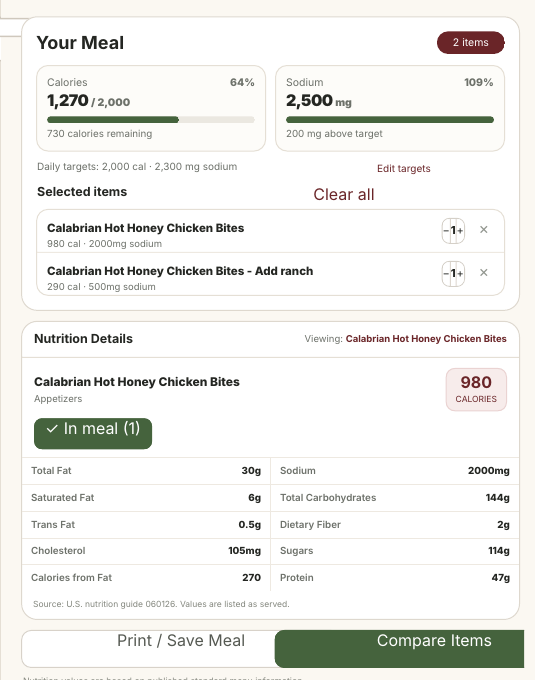
View Complete Nutrition Details
Calories are displayed prominently, but they are not the only values available. Selecting a product opens a detailed table so you can review the nutrients that matter most to you. The information remains beside the search results on desktop, which avoids sending visitors to a separate section far down the page.
The full table may include:
This makes the calculator useful for different types of meal planning. One visitor may focus mainly on calories, while another may be comparing sodium, carbohydrates or protein. Keeping these values in one table makes the products easier to review without opening several pages.
Compare Olive Garden Menu Items
The comparison option allows you to place two menu items beside each other. This is useful when two dishes look similar but have different calorie, sodium, protein or carbohydrate totals. A direct comparison can make the difference easier to understand than switching between separate nutrition tables.
You can also use the filters before comparing products. Set a maximum calorie or sodium amount, review the remaining options and then compare the two dishes that best match your preferences. This keeps the process focused without hiding the complete nutrition information.
Comparison Goal | Value to Review |
|---|---|
Lower-calorie choice | Total calories |
Lower-sodium choice | Sodium (mg) |
Higher-protein choice | Protein (g) |
Lower-fat choice | Total fat and saturated fat |
Lower-carb choice | Total carbohydrates |
More filling option | Protein, fiber, and portion size |
If you’re ordering during the day, our Olive Garden Lunch Menu can help you compare lunch-sized portions and nutrition values.
Tips for More Accurate Meal Totals
Add every part of your order that you expect to consume. Sauces, toppings, drinks, breadsticks and additional servings can change the final total, even when the main entrée remains the same. Use the quantity controls instead of assuming that the displayed value covers unlimited or repeated servings.
Check the serving description when reviewing soup and salad values. Olive Garden states that a soup serving is 8 fluid ounces, while a To Go soup order receives 16 fluid ounces. It also describes one salad serving as approximately 5 ounces, so the amount eaten may not always match a single listed serving.
Avoid treating the calculation as an exact measurement of the food served at every location. Olive Garden explains that its nutrition analysis is based on standard recipes, but ingredient portions, preparation and menu availability can cause differences. Regional products, test items and limited-time offers may also not appear in every published nutrition guide.
Before adding soup to your meal, check our Olive Garden Soup Menu for serving sizes and nutrition details.
Common Calculator Mistakes to Avoid
One common mistake is adding only the main entrée while ignoring everything served with it. Breadsticks, soup, salad dressing, dipping sauces, toppings and drinks should be included when they form part of the meal. Otherwise, the displayed calories and sodium may be much lower than the full order.
Another mistake is forgetting to change the quantity. A value listed for one serving should be multiplied when you consume two or more servings. The plus and minus controls make this adjustment without requiring a separate manual calculation.
Visitors should also avoid using calorie information as an allergen guide. Nutrition values do not confirm whether an item contains milk, wheat, soy, eggs, peanuts, tree nuts or another allergen. Olive Garden maintains a separate allergen guide and recommends checking it each time you dine because ingredients and supplier information can change.
If you have food allergies, review our Olive Garden Allergen Menu before placing your order.
Is the Olive Garden Nutrition Calculator Accurate?
The calculator uses published standard menu nutrition information and performs the addition automatically. It can accurately total the values stored for the products and quantities you select. However, the result should still be treated as an estimate of the actual food prepared in a restaurant.
Customizations may affect the final numbers. Removing an ingredient, choosing a different sauce, adding extra cheese or receiving a larger portion can make the served meal different from the standard listed version. For the latest official information, compare the calculator results with Olive Garden’s current nutrition guide before ordering.
Important Disclaimer
This calculator is provided for general informational and meal-planning purposes. It is not medical advice, and it is not operated by or officially affiliated with Olive Garden or Darden Restaurants. Nutrition values and menu availability may change, so confirm important dietary information with the restaurant.
People with food allergies or medically required dietary restrictions should not rely only on this tool. Review the current official allergen information and inform the restaurant team about any allergy before ordering. Cross-contact may still be possible in a shared restaurant kitchen.
Frequently Asked Questions
Related: Plan your meal: see Olive Garden nutrition and calorie information.
Prices vary by location. Last reviewed October 2026.